Azure Policy Mystery: Compute Baseline Applies to Windows 11 MultiSession, Not to Windows 11 Enterprise

It’s been a busy few months over here. With CMMC preparation in full swing, it’s been all about making sure our controls are defensible and our evidence holds up. I typically start from a NIST 800-171 rev.2 baseline so I’ve got a strong foundation to build on for compliance.

While reviewing my Azure Policy posture, I noticed something odd:

  • My AVD Windows 11 multi-session deployments were coming back Compliant.
  • But some test Windows 11 Enterprise VMs showed Not applicable for the guest configuration results.
  • Even more confusing: Azure Policy still appeared to report those Windows 11 Enterprise VMs as Compliant at the policy level.

That mismatch (“Compliant” vs “Not applicable”) is exactly the kind of thing that can cause confusion, or worse, show up during an audit.

What the baseline content says (MOF filters)

My first gut reaction was to look at what the baseline was actually doing. The Windows baseline content uses filters to decide whether a given rule should be evaluated. In the MOF you’ll see both a ServerTypeFilter and an OSFilter, for example:

	ServerTypeFilter = "ServerType = [Domain Controller, Domain Member, Workgroup Member]";
	OSFilter = "OSVersion = [WS2008, WS2008R2, WS2012, WS2012R2, WS2016]";

At face value, that OS filter reads like “Windows Server only” targeting (the WS* values).

What the Guest Configuration agent logs show

Next I went to the Guest Configuration agent logs:

C:\ProgramData\GuestConfig\gc_agent_logs

On the Windows 11 Enterprise VM, the logs clearly show the engine skipping rules due to OS filtering:

Message : [win11ent]: [Audit Other Object Access Events] Not evaluating rule because it was filtered due to OS version
[2025-12-26 17:23:21.749] [PID 7840] [TID 9292] [DSCEngine] [WARNING] ...

On the Windows 11 multi-session VM, the same type of check was actually being processed:

ResourceID: Audit Other Object Access Events
Message : [win11multi]: LCM:  [ Start  Get ]  [Audit Other Object Access Events]
[2025-12-26 17:21:03.877] ... Invoking resource method 'GetTargetResource' ... class name 'ASM_AuditPolicy'

So in my case:

  • Win11 Enterprise: rules get filtered “Not applicable”
  • Win11 multi-session: rules run produces compliance results

Compare OS SKU signals (including ProductType)

To compare what Windows reports about each OS, you can pull basic OS info like this:

Get-CimInstance Win32_OperatingSystem |
  Select-Object Caption, Version, BuildNumber, ProductType

Microsoft documents Win32_OperatingSystem.ProductType as: Microsoft Learn

  • Work Station (1)
  • Domain Controller (2)
  • Server (3)

This is useful context when you’re trying to understand how a configuration engine might be classifying a machine at evaluation time. (It doesn’t prove which internal mapping the baseline uses, but it’s an easy, consistent signal to capture as evidence.)


The documentation clue: this baseline isn’t intended for Windows 10/11

The big “aha” for me was in Microsoft’s baseline reference documentation. The Windows guest configuration baseline documentation explicitly states:

Azure Policy guest configuration only applies to Windows Server SKU and Azure Stack SKU. It does not apply to end user compute like Windows 10 and Windows 11 SKUs. Microsoft Learn

That statement lines up perfectly with why Windows 11 Enterprise would return Not applicable.

What didn’t line up (and what prompted the deeper dive) was why Windows 11 multisession was still producing evaluated results in my environment.

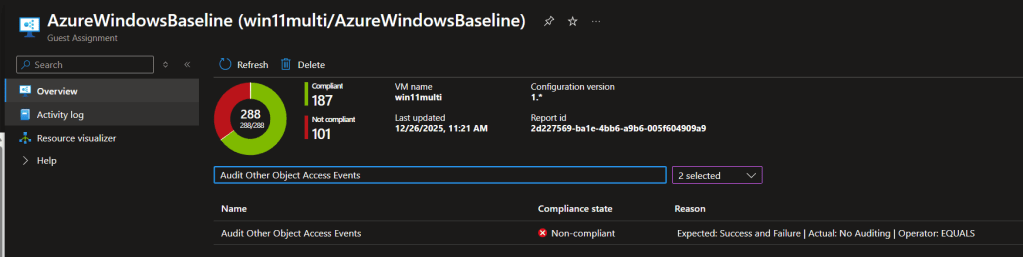
To drive the point of confusion home even futher, let’s take a look at the Guest Assignment. We can see the multi session OS is working, but the Enterprise image is showing compliant, but not applicable to that OS.
Closing the loop with Microsoft support

To close the case, I opened a ticket with Microsoft and shared:

  • the MOF filter behavior,
  • the Guest Configuration agent logs showing OS version filtering on Win11 Enterprise,
  • and the fact that Win11 multisession was still evaluating rules.

Support escalated to product and confirmed (for my scenario) that the baseline behavior I was seeing was expected, and that documentation updates were planned to make this clearer where it works with the multi session OS, but not the Enterprise OS.

Takeaway: don’t assume “Compliant” means “evaluated.” “For audit prep, verify applicability and keep a record of what the agent actually assessed, especially when you’re mixing Windows 11 Enterprise and Windows 11 multi-session in the same compliance scope.

Resolving API Permission Approval Issues in SharePoint Online

Recently, I encountered an issue that had me scratching my head. A developer needed to enable the Power Virtual Agents API permission, but it required approval in SharePoint Online. Here’s what happened and how I resolved it.

The Problem

When I navigated to API Access in SharePoint Online, selected the pending request, and clicked Approve, I received an error.

I had the correct permissions, and there were no outages reported, leaving me puzzled. After some troubleshooting on my own, I decided to open a support ticket with Microsoft. Interestingly, the support engineer was able to replicate the issue on their end, confirming it wasn’t just me.

Troubleshooting Steps

The support team walked me through a few checks. Here’s what we reviewed:

  1. Check the SharePoint Online Client Extensibility Web Application Principal Helper
    • Ensure the Client Extensibility Web Application Principal Helper is enabled for users.
    • In my case, it was already enabled, so this wasn’t the root cause.
  2. Update the Redirect URIs in Azure Portal
    This step turned out to be the fix.

Solution: Update Redirect URIs for the SharePoint Web App Principal

Here’s how to resolve the issue:

  1. Go to the Azure portal and navigate to Applications > App registrations.
  2. Select the All applications tab and search for SharePoint Web.
  3. Locate the Principal Helper app and open its overview page.
  4. Under Redirect URIs, you’ll see something like this:
    • 1 web, 0 spa, 0 public client
    • Click on this link to begin the migration process.
  5. On the next screen, you’ll see a link labeled:
    • “This app has implicit grant settings enabled. If you are using any of these URIs in SPA with MSAL.js 2.0, you should migrate URIs.”
    • Click this link to proceed.
  6. A side pane will appear with the URI details.
    • Check off the URI listed.
    • Click Configure to apply the change to the app principal.

Once the URI is updated, return to SharePoint Online and try approving the API request again. This should resolve the issue.

The Struggle of Managing Mail-Enabled Groups With Azure Functions

There’s a clear lack of love for the Exchange group and the Graph API, particularly when it comes to managing mail-enabled groups. Currently, the Graph API can only handle simple read commands for mail-enabled groups, which is a pain when dealing with real-world scenarios.

Let me explain.

When you create a user on-premise that syncs into Entra ID (or even a cloud-only user), something happens behind the scenes that synchronizes the user from Entra ID into Office. I’m not entirely sure what that process entails, but it directly impacts managing users with Exchange. The user doesn’t exist in Exchange until this sync completes. If you attempt to run a Get-User command on the newly created user before this sync finishes, you’ll encounter the following error:

error:Ex6F9304|Microsoft.Exchange.Configuration.Tasks.ManagementObjectNotFoundException|The operation couldn't be performed because object '<upn>' couldn't be found on '<serverName>.PROD.OUTLOOK.COM timestamp: <timestamp>

Most of the time, the sync finishes within seconds after creating a user. However, in some cases, it can take hours. Microsoft support informed me that it could take up to 24 hours for the sync to complete — a frustrating revelation. I was aiming for real-time automation, where users would be added to the correct mail-enabled groups as soon as they’re created. But since the Graph API doesn’t support user management in this context, I had two options: either use the portal or the Exchange Online PowerShell module.

Since this process needed to be automated, I chose to use the Exchange Online PowerShell module, setting up an Azure PowerShell Function. Initially, I considered adding a loop to check periodically if the user existed, but running into the Azure Function consumption plan’s HTTP timeout (230 seconds) quickly proved this approach impractical.

Next, I explored Azure Durable Functions. My thinking was that I could use async polling to check when the user was successfully created, then proceed to add them to the mail-enabled group. This seemed like a solid solution to the sync timing issue. However, another obstacle emerged: the durable function would throw an exception if the user didn’t exist, leading to additional retries. With multiple retries, I noticed the function running out of disk space.

It turns out that each time the durable function executed, it loaded the Exchange PowerShell module into a temporary directory. This caused the function to quickly run out of disk space, but I couldn’t directly view or manage the temporary storage because it’s handled by Microsoft. After some digging, I found a set limit on temporary storage for Azure Functions, which is detailed https://learn.microsoft.com/en-us/azure/azure-functions/functions-scale

I needed to track my temporary storage usage, so I headed to the “Diagnose and Solve Problems” section in my App Service blade, and under “Best Practices,” I found the “Temp File Usage On Workers” option. Sure enough, I could see a spike in usage, which caused the out-of-disk-space exception. At this point, I could switch to an app service plan, but that would negate the cost savings of using a consumption plan. My tests showed that the temporary usage leveled off around 1.5 GB.

The above picture shows the temp usage leveling off with a basic app service plan. I proved it could be done, but I want the cheapest path possible.

So, back to the drawing board. The most cost-effective solution I came up with was returning to a regular Azure Function and utilizing queues. I’d drop a message onto a queue and periodically check if the user existed. Once confirmed, I’d add them to the group, place a message on another queue for further processing, and notify the user.

Azure Hybrid Worker + PowerShell 7.2

I encountered a scenario where I needed to use PowerShell 7’s foreach parallel feature to significantly reduce processing time. However, my hybrid worker VMs did not have PowerShell 7 installed. I installed the latest version, 7.2, and started the runbook worker with a PS7 job, but it just hung in the queued state. Time to investigate…

Since we’re all using extension-based hybrid workers (as the agent is being phased out), you need a system variable called POWERSHELL_7_2_PATH set to the location of your pwsh.exe. I verified that this variable was set correctly.

Looking at the job logs on the hybrid worker VM, it showed the following error:

Orchestrator.Sandbox.Diagnostics Critical: 0 : [2024-07-18T21:05:45.3704708Z]  An unhandled exception was encountered while handling the job action.  The sandbox will terminate immediately. [jobId=54d069c4-a986-4e59-a22f-effd94a83c5b][source=Queue][exceptionMessage=System.InvalidOperationException: Runbook type '17' not supported.

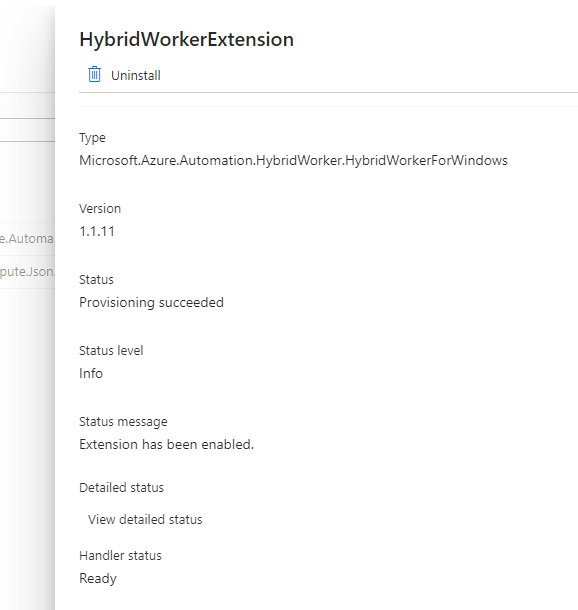
Runbook type ’17’ not supported? There was no information on the Microsoft site about requirements beyond setting the environment variable. Their troubleshooting page also lacked relevant information. When I ran a PS7 command on the VM, it worked perfectly, but the job still hung in the hybrid worker. This suggested an issue with the extension. My current extension version was 1.1.11.

I wished for a changelog, but alas, that would be too easy. To list the available versions of the extension, run the following command:

az vm extension image list-versions --publisher 'Microsoft.Azure.Automation.HybridWorker' --location <region> --name 'HybridWorkerForWindows'

This showed versions 1.1.12 and 1.1.13 available. But why didn’t the 1.1.11 extension auto-upgrade? Odd. The following command upgrades the extension:

Set-AzVMExtension -ResourceGroupName <rg> -Location <region> -VMName <vmName> -Name "HybridWorkerExtension" -Publisher "Microsoft.Azure.Automation.HybridWorker" -ExtensionType HybridWorkerForWindows -TypeHandlerVersion 1.1 -Settings $settings -EnableAutomaticUpgrade $true

Note that the documentation mentions a parameter called -Settings, but doesn’t specify what it should be. I omitted it, and the command still upgraded my extension to the latest version.

After the upgrade, my PS7 job worked flawlessly. Cheers!