When Microsoft Teams Doesn’t Show the Owner and How I Fixed It at Scale Using Graph Change Notifications

We began noticing an odd issue in our Microsoft Teams environment: newly created Teams were assigning the correct owner on the group, but this owner was not showing up in the Teams client. From a backend perspective, everything looked correct in EntraID, but when users opened the Teams app, the owner list was empty.

This wasn’t just a cosmetic bug, it affected team functionality, governance workflows, and user trust.

We opened a case with Microsoft and it was a known bug with no ETA on a fix. Bummer.
Microsoft recommended the following as a workaround:

  1. Remove the owner from the group.
  2. Add them back as an owner.

This action effectively “refreshed” the team and made the ownership visible in the Teams client. However, this method was:

  1. Manual
  2. Time consuming
  3. Prone to human error
  4. Not scalable for a large enterprise

We needed a robust, scalable, automated fix.

To solve this at scale, I leveraged Microsoft Graph Change Notifications (webhooks) combined with Azure Functions and Graph API. Here’s how it works:

  • I subscribed to change notifications on Teams group resources.
  • When a new team is created, a notification is sent to our webhook.
  • My function then:
    1. Validates and decrypts the Graph notification.
    2. Retrieves the current owners.
    3. Adds a temporary owner to force a group ownership update.
    4. Removes and then re-adds the original owner(s).
    5. Removes the temporary owner.

This process resyncs the ownership so that it reflects properly in the Teams client.

To get started, we need to create an application and log in with that to create the permissions. We cannot do it with delegated auth.


connect-mggraph -Environment USGov  -ApplicationId "appidhere"  -CertificateThumbprint 'logginginwiththumbprint' -TenantId tenantidhere
$cert = New-SelfSignedCertificate `
  -Subject            "CN=GraphWebhookCert" `
  -CertStoreLocation  "Cert:\CurrentUser\My" `
  -KeyExportPolicy    Exportable `
  -KeyUsage           KeyEncipherment, DataEncipherment `
  -KeyAlgorithm       RSA `
  -KeyLength          2048 `
  -NotAfter           (Get-Date).AddYears(1)

# 2) Export the public key to a .cer file
$publicPath = "c:\temp\GraphWebhookCert.cer"
Export-Certificate `
  -Cert   $cert `
  -FilePath $publicPath

# 3) Export the private key to a PFX (for local testing / Key Vault)
$pfxPath  = "c:\temp\GraphWebhookCert.pfx"
$pfxPwd   = ConvertTo-SecureString -String "MySecurePasswordHere" -Force -AsPlainText
Export-PfxCertificate `
  -Cert     $cert `
  -FilePath $pfxPath `
  -Password $pfxPwd

# 4) Base64-encode the public .cer for inclusion in New-MgSubscription
$rawBytes = [IO.File]::ReadAllBytes($publicPath)
$base64Cert = [Convert]::ToBase64String($rawBytes)

# 5) Grab the thumbprint you’ll use as encryptionCertificateId
$thumbprint = $cert.Thumbprint

Write-Host "Public cert (base64):`n$base64Cert"
Write-Host "`nEncryptionCertificateId (thumbprint): $thumbprint"

$certId = '9f0345e7-bb60-4240-a4cb-0936dbc57bae' #(new-guid).Guid
$clientState = 'dcde8a93-acd1-4154-9a5b-2e83e63aa49f' #(new-guid).Guid

# Prepare your parameters
$notificationUrl         = "https://notificationFunctionUrl.azurewebsites.us/api/teams?code=codehere"
$lifecycleNotificationUrl = "https://notificationFunctionUrl.azurewebsites.us/api/lifecyclenotifications?code=codehere"
$resource                = "/teams"
$expiration              = (Get-Date).ToUniversalTime().AddDays(3).ToString("yyyy-MM-ddThh:mm:ssZ")
$certBytes               = [System.IO.File]::ReadAllBytes("C:\temp\GraphWebhookCert.cer")
$base64Cert              = [Convert]::ToBase64String($certBytes)
$certId                  = $certId
$clientState             = $clientState

# Create the subscription
New-MgSubscription `
  -ChangeType created `
  -NotificationUrl           $notificationUrl `
  -LifecycleNotificationUrl  $lifecycleNotificationUrl `
  -Resource                  $resource `
  -IncludeResourceData       `
  -EncryptionCertificate     $base64Cert `
  -EncryptionCertificateId   $certId `
  -ExpirationDateTime        $expiration `
  -ClientState               $clientState

Login-AzAccount -Environment AzureUSGovernment
$MsiName = "functionNameForMSI" # Name of system-assigned or user-assigned managed service identity. (System-assigned use same name as resource).

$oPermissions = @(
  "GroupMember.ReadWrite.All"
  "Group.ReadWrite.All"
)

$GraphAppId = "00000003-0000-0000-c000-000000000000" # Don't change this.

$oMsi = Get-AzADServicePrincipal -Filter "displayName eq '$MsiName'"
$oGraphSpn = Get-AzADServicePrincipal -Filter "appId eq '$GraphAppId'"

$oAppRole = $oGraphSpn.AppRole | Where-Object {($_.Value -in $oPermissions) -and ($_.AllowedMemberType -contains "Application")}

Connect-MgGraph -Environment USGov

foreach($AppRole in $oAppRole)
{
  $oAppRoleAssignment = @{
    "PrincipalId" = $oMSI.Id
    "ResourceId" = $oGraphSpn.Id
    "AppRoleId" = $AppRole.Id
  }
  
  New-MgServicePrincipalAppRoleAssignment `
    -ServicePrincipalId $oAppRoleAssignment.PrincipalId `
    -BodyParameter $oAppRoleAssignment `
    -Verbose
}

I initially tried creating a function with PowerShell code to handle this, but something with the runtime function would not let me decrypt with the certificate. Once I switched to C#, it all worked in Azure Gov.

A couple of things to note. EncryptionCertificateId is a string I created to check to make sure it is a valid certificate coming in. This certificate is used to decrypt the Teams resource data payload to get details. Always verify the authenticity of change notifications before processing them. This prevents your app from triggering incorrect business logic by using fake notifications from third parties. Also, ClientState is a secret value that must match the value originally submitted with the subscription creation request. If there’s a mismatch, don’t consider the change notification as valid. It’s possible that the change notification isn’t originated from Microsoft Graph and may have been sent by a rogue actor.

// This function handles both decryption and lifecycle events, including re-creating subscriptions.
// It is specifically configured for the Azure Government cloud.
// 1. Add NuGet Packages: Microsoft.Graph, Azure.Identity
// 2. Enable System-Assigned Managed Identity on the Function App.
// 3. Grant Managed Identity API Permissions
// 4. Set App Settings: 'WEBSITE_LOAD_CERTIFICATES', 'GraphNotificationCertThumbprint', 
//    'TempOwnerUserId', 'ExpectedCertificateId', 'NotificationUrl', 'LifecycleNotificationUrl',
//    'SubscriptionClientState', 'SubscriptionChangeTypes'.

using System;
using System.Collections.Generic;
using System.IO;
using System.Linq;
using System.Security.Cryptography;
using System.Security.Cryptography.X509Certificates;
using System.Text.RegularExpressions;
using System.Threading.Tasks;
using Azure.Identity;
using Microsoft.AspNetCore.Http;
using Microsoft.AspNetCore.Mvc;
using Microsoft.Azure.Functions.Worker;
using Microsoft.Extensions.Logging;
using Microsoft.Graph;
using Microsoft.Graph.Models;
using Microsoft.Graph.Models.ODataErrors;
using Newtonsoft.Json;

namespace Company.Function;

#region Data Models for Resource Notifications
public class GraphNotificationPayload
{
    [JsonProperty("value")]
    public List<Notification> Value { get; set; }

    [JsonProperty("validationTokens")]
    public List<string> ValidationTokens { get; set; }
}

public class Notification
{
    [JsonProperty("subscriptionId")]
    public string SubscriptionId { get; set; }
    
    [JsonProperty("changeType")]
    public string ChangeType { get; set; }
    
    [JsonProperty("clientState")]
    public string ClientState { get; set; }
    
    [JsonProperty("subscriptionExpirationDateTime")]
    public DateTimeOffset SubscriptionExpirationDateTime { get; set; }

    [JsonProperty("resource")]
    public string Resource { get; set; }

    [JsonProperty("resourceData")]
    public ResourceDataObject ResourceData { get; set; }

    [JsonProperty("encryptedContent")]
    public EncryptedContent EncryptedContent { get; set; }

    [JsonProperty("tenantId")]
    public string TenantId { get; set; }
}

public class ResourceDataObject
{
    [JsonProperty("id")]
    public string Id { get; set; }

    [JsonProperty("@odata.type")]
    public string ODataType { get; set; }

    [JsonProperty("@odata.id")]
    public string ODataId { get; set; }
}

public class EncryptedContent
{
    [JsonProperty("data")]
    public string Data { get; set; }

    [JsonProperty("dataSignature")]
    public string DataSignature { get; set; }

    [JsonProperty("dataKey")]
    public string DataKey { get; set; }

    [JsonProperty("encryptionCertificateId")]
    public string EncryptionCertificateId { get; set; }

    [JsonProperty("encryptionCertificateThumbprint")]
    public string EncryptionCertificateThumbprint { get; set; }
}
#endregion

#region Data Models for Lifecycle Notifications
public class LifecycleNotificationPayload
{
    [JsonProperty("value")]
    public List<LifecycleNotificationItem> Value { get; set; }
}

public class LifecycleNotificationItem
{
    [JsonProperty("lifecycleEvent")]
    public string LifecycleEvent { get; set; }
    
    [JsonProperty("subscriptionId")]
    public string SubscriptionId { get; set; }

    [JsonProperty("resource")]
    public string Resource { get; set; }
    
    [JsonProperty("subscriptionExpirationDateTime")]
    public DateTimeOffset SubscriptionExpirationDateTime { get; set; }
}
#endregion

/// <summary>
/// This function handles the primary change notifications containing encrypted resource data.
/// </summary>
public class teams
{
    private readonly ILogger<teams> _logger;

    public teams(ILogger<teams> logger)
    {
        _logger = logger;
    }

    [Function("teams")]
    public async Task<IActionResult> Run([HttpTrigger(AuthorizationLevel.Function, "post")] HttpRequest req)
    {
        _logger.LogInformation("C# HTTP trigger function 'teams' processed a request.");

        string validationToken = req.Query["validationToken"];
        if (!string.IsNullOrEmpty(validationToken))
        {
            _logger.LogInformation($"'teams' validation token received: {validationToken}");
            return new ContentResult { Content = validationToken, ContentType = "text/plain", StatusCode = 200 };
        }

        _logger.LogInformation("'teams' received a new resource data notification.");
        try
        {
            string requestBody = await new StreamReader(req.Body).ReadToEndAsync();
            var notifications = JsonConvert.DeserializeObject<GraphNotificationPayload>(requestBody);

            foreach (var notification in notifications.Value)
            {
                _logger.LogInformation($"Processing notification for resource: {notification.Resource}. ClientState: {notification.ClientState}");
                var expectedClientState = Environment.GetEnvironmentVariable("SubscriptionClientState");
                if (!string.Equals(notification.ClientState, expectedClientState, StringComparison.OrdinalIgnoreCase))
                {
                    _logger.LogWarning($"ClientState mismatch. Expected: '{expectedClientState}', Received: '{notification.ClientState}'. Skipping notification.");
                    continue;
                }
                #region Decryption Logic
                var expectedCertId = Environment.GetEnvironmentVariable("ExpectedCertificateId");
                if (!string.IsNullOrEmpty(expectedCertId) && !notification.EncryptedContent.EncryptionCertificateId.Equals(expectedCertId, StringComparison.OrdinalIgnoreCase))
                {
                    _logger.LogError($"Certificate ID mismatch. Expected: '{expectedCertId}', Actual: '{notification.EncryptedContent.EncryptionCertificateId}'. Skipping.");
                    continue;
                }
                _logger.LogInformation("Certificate ID validation successful.");

                var certThumbprint = notification.EncryptedContent?.EncryptionCertificateThumbprint ?? Environment.GetEnvironmentVariable("GraphNotificationCertThumbprint");
                if (string.IsNullOrEmpty(certThumbprint))
                {
                    _logger.LogError("Certificate thumbprint not found in payload or app settings.");
                    return new StatusCodeResult(500);
                }
                
                X509Certificate2 certificate;
                using (var store = new X509Store(StoreName.My, StoreLocation.CurrentUser))
                {
                    store.Open(OpenFlags.ReadOnly);
                    var certs = store.Certificates.Find(X509FindType.FindByThumbprint, certThumbprint, false);
                    certificate = certs.Count > 0 ? certs[0] : null;
                }

                if (certificate == null)
                {
                    _logger.LogError($"Certificate with thumbprint '{certThumbprint}' not found.");
                    return new StatusCodeResult(500);
                }

                using RSA rsa = certificate.GetRSAPrivateKey();
                byte[] decryptedSymmetricKey = rsa.Decrypt(Convert.FromBase64String(notification.EncryptedContent.DataKey), RSAEncryptionPadding.OaepSHA1);

                byte[] encryptedPayload = Convert.FromBase64String(notification.EncryptedContent.Data);
                byte[] expectedSignature = Convert.FromBase64String(notification.EncryptedContent.DataSignature);
                
                using (var hmac = new HMACSHA256(decryptedSymmetricKey))
                {
                    if (!hmac.ComputeHash(encryptedPayload).SequenceEqual(expectedSignature))
                    {
                        _logger.LogError("Signature validation failed.");
                        continue; 
                    }
                }
                _logger.LogInformation("Signature validation successful.");

                using Aes aesProvider = Aes.Create();
                aesProvider.Key = decryptedSymmetricKey;
                aesProvider.Padding = PaddingMode.PKCS7;
                aesProvider.Mode = CipherMode.CBC;

                byte[] iv = new byte[16];
                Array.Copy(decryptedSymmetricKey, 0, iv, 0, 16);
                aesProvider.IV = iv;

                string decryptedResourceData;
                using (var decryptor = aesProvider.CreateDecryptor())
                using (var msDecrypt = new MemoryStream(encryptedPayload))
                using (var csDecrypt = new CryptoStream(msDecrypt, decryptor, CryptoStreamMode.Read))
                using (var srDecrypt = new StreamReader(csDecrypt))
                {
                    decryptedResourceData = await srDecrypt.ReadToEndAsync();
                }
                
                _logger.LogInformation($"Successfully decrypted payload: {decryptedResourceData}");
                #endregion

                #region Graph API Call to Rotate Team Owners
                var match = Regex.Match(notification.Resource, @"\('([^']+)'\)");
                if (!match.Success)
                {
                    _logger.LogWarning($"Could not parse Team ID from resource: {notification.Resource}");
                    continue;
                }
                var teamId = match.Groups[1].Value;

                var options = new DefaultAzureCredentialOptions { AuthorityHost = AzureAuthorityHosts.AzureGovernment };
                var credential = new DefaultAzureCredential(options);
                var scopes = new[] { "https://graph.microsoft.us/.default" };
                
                var graphClient = new GraphServiceClient(credential, scopes, "https://graph.microsoft.us/v1.0");
                _logger.LogInformation("GraphServiceClient created and configured for Azure Government.");
                
                // 1. Get original owners with retry logic for replication delay 
                _logger.LogInformation($"Fetching owners for Team ID: {teamId}");
                DirectoryObjectCollectionResponse originalOwners = null;
                bool success = false;
                int maxRetries = 3;
                int delaySeconds = 15;

                for (int i = 0; i < maxRetries; i++)
                {
                    try
                    {
                        originalOwners = await graphClient.Groups[teamId].Owners.GetAsync();
                        _logger.LogInformation($"Successfully fetched owners for Team ID: {teamId}");
                        success = true;
                        break; // Exit loop on success
                    }
                    catch (ODataError odataError) when (odataError.Error?.Code == "Request_ResourceNotFound")
                    {
                        _logger.LogWarning($"Attempt {i + 1} of {maxRetries}: Team '{teamId}' not found yet due to potential replication delay. Retrying in {delaySeconds}s...");
                        if (i < maxRetries - 1)
                        {
                            await Task.Delay(delaySeconds * 1000);
                            delaySeconds *= 2; // Exponential backoff
                        }
                    }
                }
                
                if (!success)
                {
                    _logger.LogError($"Could not find Team '{teamId}' after {maxRetries} attempts. Aborting owner rotation for this notification.");
                    continue; // Skip to the next notification
                }
                
                // 2. Add new temporary owner 
                var tempOwnerUserId = Environment.GetEnvironmentVariable("TempOwnerUserId");
                if (string.IsNullOrEmpty(tempOwnerUserId))
                {
                    _logger.LogError("TempOwnerUserId app setting is not configured.");
                    continue;
                }

                _logger.LogInformation($"Attempting to add new owner: {tempOwnerUserId}");
                var newOwner = new ReferenceCreate { OdataId = $"https://graph.microsoft.us/v1.0/users/{tempOwnerUserId}" };
                try
                {
                    await graphClient.Groups[teamId].Owners.Ref.PostAsync(newOwner);
                    _logger.LogInformation("Successfully added new owner.");
                }
                catch (Exception ex)
                {
                    _logger.LogError(ex, $"Failed to add new owner. Full Exception: {ex.ToString()}");
                    continue; // Stop if we can't add the temp owner
                }

                // 3. Remove original owners 
                if (originalOwners?.Value?.Count > 0)
                {
                    _logger.LogInformation("Removing original owners...");
                    foreach (var owner in originalOwners.Value)
                    {
                        if (owner.Id.Equals(tempOwnerUserId, StringComparison.OrdinalIgnoreCase))
                        {
                            _logger.LogInformation($"Skipping removal of '{owner.Id}' as they are the new temporary owner.");
                            continue;
                        }
                        _logger.LogInformation($" Removing original owner: {owner.Id}");
                        await graphClient.Groups[teamId].Owners[owner.Id].Ref.DeleteAsync();
                    }
                    _logger.LogInformation("Finished removing original owners.");
                }
                
                // 4. Add original owners back 
                if (originalOwners?.Value?.Count > 0)
                {
                    _logger.LogInformation("Adding original owners back...");
                    foreach (var owner in originalOwners.Value)
                    {
                         if (owner.Id.Equals(tempOwnerUserId, StringComparison.OrdinalIgnoreCase)) continue;
                        
                        _logger.LogInformation($" Re-adding original owner: {owner.Id}");
                        var originalOwnerToAddBack = new ReferenceCreate { OdataId = $"https://graph.microsoft.us/v1.0/directoryObjects/{owner.Id}" };
                        try
                        {
                            await graphClient.Groups[teamId].Owners.Ref.PostAsync(originalOwnerToAddBack);
                        }
                        catch (Exception ex)
                        {
                            _logger.LogError(ex, $"Failed to re-add original owner '{owner.Id}'.");
                        }
                    }
                    _logger.LogInformation("Finished adding original owners back.");
                }

                // 5. Remove the temporary owner
                _logger.LogInformation($"Attempting to remove temporary owner: {tempOwnerUserId}");
                try
                {
                    await graphClient.Groups[teamId].Owners[tempOwnerUserId].Ref.DeleteAsync();
                    _logger.LogInformation("Successfully removed temporary owner.");
                }
                catch (Exception ex)
                {
                     _logger.LogError(ex, $"Failed to remove temporary owner '{tempOwnerUserId}'.");
                }

                #endregion
            }
        }
        catch (Exception ex)
        {
            _logger.LogError(ex.ToString());
            return new StatusCodeResult(500);
        }

        return new StatusCodeResult(202);
    }
}


/// This function handles lifecycle notifications for the Graph subscription (e.g., reauthorization).
/// Its URL should be used for the 'lifecycleNotificationUrl' property when creating a subscription.
public class LifecycleNotifications
{
    private readonly ILogger<LifecycleNotifications> _logger;

    public LifecycleNotifications(ILogger<LifecycleNotifications> logger)
    {
        _logger = logger;
    }

    [Function("LifecycleNotifications")]
    public async Task<IActionResult> Run([HttpTrigger(AuthorizationLevel.Function, "post")] HttpRequest req)
    {
        _logger.LogInformation("C# HTTP trigger function 'LifecycleNotifications' processed a request.");

        string validationToken = req.Query["validationToken"];
        if (!string.IsNullOrEmpty(validationToken))
        {
            _logger.LogInformation($"'LifecycleNotifications' validation token received: {validationToken}");
            return new ContentResult { Content = validationToken, ContentType = "text/plain", StatusCode = 200 };
        }

        _logger.LogInformation("'LifecycleNotifications' received a new event.");
        try
        {
            string requestBody = await new StreamReader(req.Body).ReadToEndAsync();
            var lifecycleNotifications = JsonConvert.DeserializeObject<LifecycleNotificationPayload>(requestBody);

            foreach(var notification in lifecycleNotifications.Value)
            {
                _logger.LogWarning($"Received lifecycle event: '{notification.LifecycleEvent}' for subscription '{notification.SubscriptionId}' on resource '{notification.Resource}'.");
                
                if (notification.LifecycleEvent.Equals("subscriptionRemoved", StringComparison.OrdinalIgnoreCase))
                {
                    await RecreateSubscription(notification);
                }
            }
        }
        catch (Exception ex)
        {
            _logger.LogError(ex.ToString());
        }

        return new StatusCodeResult(202);
    }

    private async Task RecreateSubscription(LifecycleNotificationItem item)
    {
        _logger.LogInformation($"Attempting to re-create subscription for resource: {item.Resource}");
        try
        {
            var options = new DefaultAzureCredentialOptions { AuthorityHost = AzureAuthorityHosts.AzureGovernment };
            var credential = new DefaultAzureCredential(options);
            var scopes = new[] { "https://graph.microsoft.us/.default" };
            
            var graphClient = new GraphServiceClient(credential, scopes, "https://graph.microsoft.us/v1.0");

            var changeTypes = Environment.GetEnvironmentVariable("SubscriptionChangeTypes") ?? "created,updated,deleted";
            var notificationUrl = Environment.GetEnvironmentVariable("NotificationUrl");
            var lifecycleUrl = Environment.GetEnvironmentVariable("LifecycleNotificationUrl");
            var clientState = Environment.GetEnvironmentVariable("SubscriptionClientState") ?? Guid.NewGuid().ToString();
            var certId = Environment.GetEnvironmentVariable("ExpectedCertificateId");

            if (string.IsNullOrEmpty(notificationUrl) || string.IsNullOrEmpty(lifecycleUrl) || string.IsNullOrEmpty(certId))
            {
                _logger.LogError("Cannot re-create subscription. Required app settings (NotificationUrl, LifecycleNotificationUrl, ExpectedCertificateId) are missing.");
                return;
            }

            var newSubscription = new Subscription
            {
                Resource = item.Resource,
                ChangeType = changeTypes,
                NotificationUrl = notificationUrl,
                LifecycleNotificationUrl = lifecycleUrl,
                ExpirationDateTime = DateTimeOffset.UtcNow.AddHours(71), // ~3 days for Teams
                ClientState = clientState,
                EncryptionCertificateId = certId
            };

            var createdSubscription = await graphClient.Subscriptions.PostAsync(newSubscription);
            _logger.LogInformation($"Successfully re-created subscription. New ID: {createdSubscription.Id}, Expires: {createdSubscription.ExpirationDateTime}");
        }
        catch (Exception ex)
        {
            _logger.LogError(ex.ToString());
        }
    }
}

I did put in a max retries on getting the owner. There is a slight delay from Teams provisioning and querying Entra ID. Other than that, it worked great. Microsoft did push the fix out, so this is no longer needed. Some times, you just need to think out of the box to keep the business moving forward!


Resolving API Permission Approval Issues in SharePoint Online

Recently, I encountered an issue that had me scratching my head. A developer needed to enable the Power Virtual Agents API permission, but it required approval in SharePoint Online. Here’s what happened and how I resolved it.

The Problem

When I navigated to API Access in SharePoint Online, selected the pending request, and clicked Approve, I received an error.

I had the correct permissions, and there were no outages reported, leaving me puzzled. After some troubleshooting on my own, I decided to open a support ticket with Microsoft. Interestingly, the support engineer was able to replicate the issue on their end, confirming it wasn’t just me.

Troubleshooting Steps

The support team walked me through a few checks. Here’s what we reviewed:

  1. Check the SharePoint Online Client Extensibility Web Application Principal Helper
    • Ensure the Client Extensibility Web Application Principal Helper is enabled for users.
    • In my case, it was already enabled, so this wasn’t the root cause.
  2. Update the Redirect URIs in Azure Portal
    This step turned out to be the fix.

Solution: Update Redirect URIs for the SharePoint Web App Principal

Here’s how to resolve the issue:

  1. Go to the Azure portal and navigate to Applications > App registrations.
  2. Select the All applications tab and search for SharePoint Web.
  3. Locate the Principal Helper app and open its overview page.
  4. Under Redirect URIs, you’ll see something like this:
    • 1 web, 0 spa, 0 public client
    • Click on this link to begin the migration process.
  5. On the next screen, you’ll see a link labeled:
    • “This app has implicit grant settings enabled. If you are using any of these URIs in SPA with MSAL.js 2.0, you should migrate URIs.”
    • Click this link to proceed.
  6. A side pane will appear with the URI details.
    • Check off the URI listed.
    • Click Configure to apply the change to the app principal.

Once the URI is updated, return to SharePoint Online and try approving the API request again. This should resolve the issue.

The Struggle of Managing Mail-Enabled Groups With Azure Functions

There’s a clear lack of love for the Exchange group and the Graph API, particularly when it comes to managing mail-enabled groups. Currently, the Graph API can only handle simple read commands for mail-enabled groups, which is a pain when dealing with real-world scenarios.

Let me explain.

When you create a user on-premise that syncs into Entra ID (or even a cloud-only user), something happens behind the scenes that synchronizes the user from Entra ID into Office. I’m not entirely sure what that process entails, but it directly impacts managing users with Exchange. The user doesn’t exist in Exchange until this sync completes. If you attempt to run a Get-User command on the newly created user before this sync finishes, you’ll encounter the following error:

error:Ex6F9304|Microsoft.Exchange.Configuration.Tasks.ManagementObjectNotFoundException|The operation couldn't be performed because object '<upn>' couldn't be found on '<serverName>.PROD.OUTLOOK.COM timestamp: <timestamp>

Most of the time, the sync finishes within seconds after creating a user. However, in some cases, it can take hours. Microsoft support informed me that it could take up to 24 hours for the sync to complete — a frustrating revelation. I was aiming for real-time automation, where users would be added to the correct mail-enabled groups as soon as they’re created. But since the Graph API doesn’t support user management in this context, I had two options: either use the portal or the Exchange Online PowerShell module.

Since this process needed to be automated, I chose to use the Exchange Online PowerShell module, setting up an Azure PowerShell Function. Initially, I considered adding a loop to check periodically if the user existed, but running into the Azure Function consumption plan’s HTTP timeout (230 seconds) quickly proved this approach impractical.

Next, I explored Azure Durable Functions. My thinking was that I could use async polling to check when the user was successfully created, then proceed to add them to the mail-enabled group. This seemed like a solid solution to the sync timing issue. However, another obstacle emerged: the durable function would throw an exception if the user didn’t exist, leading to additional retries. With multiple retries, I noticed the function running out of disk space.

It turns out that each time the durable function executed, it loaded the Exchange PowerShell module into a temporary directory. This caused the function to quickly run out of disk space, but I couldn’t directly view or manage the temporary storage because it’s handled by Microsoft. After some digging, I found a set limit on temporary storage for Azure Functions, which is detailed https://learn.microsoft.com/en-us/azure/azure-functions/functions-scale

I needed to track my temporary storage usage, so I headed to the “Diagnose and Solve Problems” section in my App Service blade, and under “Best Practices,” I found the “Temp File Usage On Workers” option. Sure enough, I could see a spike in usage, which caused the out-of-disk-space exception. At this point, I could switch to an app service plan, but that would negate the cost savings of using a consumption plan. My tests showed that the temporary usage leveled off around 1.5 GB.

The above picture shows the temp usage leveling off with a basic app service plan. I proved it could be done, but I want the cheapest path possible.

So, back to the drawing board. The most cost-effective solution I came up with was returning to a regular Azure Function and utilizing queues. I’d drop a message onto a queue and periodically check if the user existed. Once confirmed, I’d add them to the group, place a message on another queue for further processing, and notify the user.

Azure Hybrid Worker + PowerShell 7.2

I encountered a scenario where I needed to use PowerShell 7’s foreach parallel feature to significantly reduce processing time. However, my hybrid worker VMs did not have PowerShell 7 installed. I installed the latest version, 7.2, and started the runbook worker with a PS7 job, but it just hung in the queued state. Time to investigate…

Since we’re all using extension-based hybrid workers (as the agent is being phased out), you need a system variable called POWERSHELL_7_2_PATH set to the location of your pwsh.exe. I verified that this variable was set correctly.

Looking at the job logs on the hybrid worker VM, it showed the following error:

Orchestrator.Sandbox.Diagnostics Critical: 0 : [2024-07-18T21:05:45.3704708Z]  An unhandled exception was encountered while handling the job action.  The sandbox will terminate immediately. [jobId=54d069c4-a986-4e59-a22f-effd94a83c5b][source=Queue][exceptionMessage=System.InvalidOperationException: Runbook type '17' not supported.

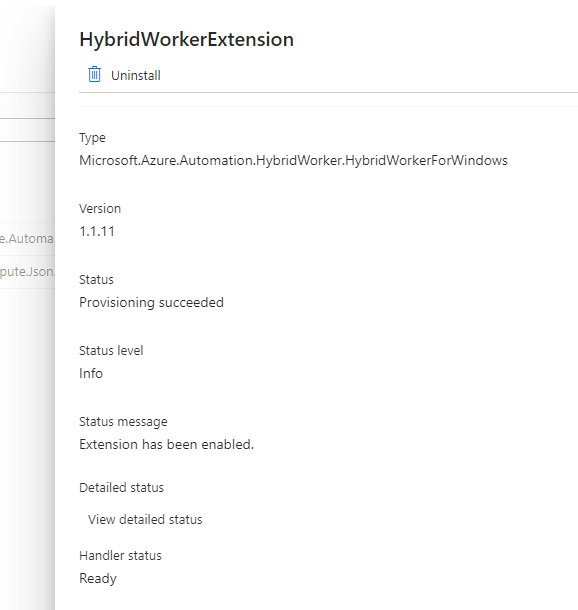
Runbook type ’17’ not supported? There was no information on the Microsoft site about requirements beyond setting the environment variable. Their troubleshooting page also lacked relevant information. When I ran a PS7 command on the VM, it worked perfectly, but the job still hung in the hybrid worker. This suggested an issue with the extension. My current extension version was 1.1.11.

I wished for a changelog, but alas, that would be too easy. To list the available versions of the extension, run the following command:

az vm extension image list-versions --publisher 'Microsoft.Azure.Automation.HybridWorker' --location <region> --name 'HybridWorkerForWindows'

This showed versions 1.1.12 and 1.1.13 available. But why didn’t the 1.1.11 extension auto-upgrade? Odd. The following command upgrades the extension:

Set-AzVMExtension -ResourceGroupName <rg> -Location <region> -VMName <vmName> -Name "HybridWorkerExtension" -Publisher "Microsoft.Azure.Automation.HybridWorker" -ExtensionType HybridWorkerForWindows -TypeHandlerVersion 1.1 -Settings $settings -EnableAutomaticUpgrade $true

Note that the documentation mentions a parameter called -Settings, but doesn’t specify what it should be. I omitted it, and the command still upgraded my extension to the latest version.

After the upgrade, my PS7 job worked flawlessly. Cheers!

Troubleshooting and Fixing AADSSHLOGIN SELinux Module Issue in RHEL 8.9 VM in Azure

I ran into an interesting problem today when an az ssh vm command was giving a denied public key on a RHEL 8.9 VM in Azure. I verified the correct IAM permission was setup to allow login, so it wasn’t that. Time to jump onto the vm via regular ole ssh.

I started poking around in the logs and saw this error

libsemanage.semanage_direct_get_module_info: Unable to open aad_permissions module lang ext file at /var/lib/selinux/targeted/tmp/modules/400/aad_permissions/lang_ext. (No such file or directory).

aad_permissions told me it had to do something with the AAD login for Linux. I navigated to the aad aah login package directory in /var/lib/waagent/… and reviewed the installer.sh. I saw it installs both these packages:

aadsshlogin-selinux

aadsshlogin

Running the command semodule -l to see if those modules were installed instantly blew up returning the lang_ext error from above. At this point, something with selinux hosed my custom selinux modules. I thought, ok, let me just uninstall and reinstall the aadsshloginforlinux extension. Uninstall worked, but the install blew up, again, with the same error above.

I figured I need to reinitialize selinux modules. I did that by doing the following:

mv /var/lib/selinux/targeted /var/lib/selinux/targeted.bkup
rm -rf /etc/selinux/tmp
yum reinstall selinux-policy-targeted

This will recreate the targeted folder. I then reinstalled the aadsshlogin packages

yum reinstall aadsshlogin-selinux.x86_64 
yum reinstall aadsshlogin.x86_64 

then ./installer.sh install    installed the extension successfully. I could of skipped the reinstall of the aadsshlogin packages, but I wanted to verify they installed successfully.

After that, I was then able to log back in and verify /var/lib/selinux/targeted/tmp/modules/400/aad_permissions/lang_ext exists and can successfully az ssh vm in.

Now, what corrupted selinux? I have no idea and that will be an investigation for tomorrow.

Cheers!

Azure Durable PowerShell Function -Automatic Retry Sample

Azure Functions offers a cost-effective solution for developing provisioning code, including managing SharePoint with PnP. By leveraging Azure Functions, applications can execute actions securely using managed identities and Entra ID authentication. However, as my workflows increase in complexity, the need for a more stateful approach becomes apparent. Initially, my project started with a simple one-method function, but it evolved into complex provisioning, leading me to adopt durable functions instead of having to manage state and queues myself. Let’s take a quick look at the automatic retry functionality and how to get it to work using PowerShell.

Consider the following example where I provision a SharePoint site and check its readiness:

$siteUrl = Invoke-DurableActivity -FunctionName 'CreateSite' -Input $Context


$retryOptionsSiteStatus = New-DurableRetryOptions `
        -FirstRetryInterval (New-TimeSpan -Seconds 15) `
        -MaxNumberOfAttempts 5

Invoke-DurableActivity -FunctionName 'CheckSiteReady' -Input $siteUrl -RetryOptions $retryOptionsSiteStatus

The CheckSiteReady activity:


param($siteUrl)
try {
    
    Connect-PnPOnline ...
    $site = Get-PnPTenantSite | Where { $_.Url -eq $siteUrl }
    If ($Site -eq $null) {  
        throw
    }  
    Else {  
        Write-host "Site $siteUrl exists" 
    }  
}
catch {
    Write-host "Site $siteUrl doesn't exist!"  
} 

I create the site then verify the site exists. When executing it, it threw an exception in the orchestrator if the site did not exist, but it did not automatically retry.

[Error] EXCEPTION: Orchestrator: Could not validate Input. Unexpected error Value cannot be null. (Parameter 'input')

Exception :
Type : Microsoft.PowerShell.Commands.WriteErrorException
Message : Orchestrator: Could not validate Input. Unexpected error Value cannot be null. (Parameter 'input')

The documentation https://learn.microsoft.com/en-us/azure/azure-functions/durable/durable-functions-error-handling?tabs=powershell just shows the invoke-durableactivity from the orchestrator level and not the activity. I created a CSS ticket to see if they had some more info on how to actually use this cmdlet.

While I wait to hear back from CSS, I thought at this point the exception is being handled in the activity and not being returned to the orchestrator to handle it. Sure enough, I removed the try/catch in the activity and it worked! CSS came back and originally said it might be a bug and to use the preview SDK. Well, I did try out the new SDK and it did change the behavior up a little.

[Information]   282f4e67-4de6-4807-a785-389a030c2c79: Function 'Orchestrator (Orchestrator)' completed. ContinuedAsNew: False. IsReplay: False. Output: (null). State: Completed. RuntimeStatus: Completed. HubName: functest1. AppName: functest1. SlotName: Production. ExtensionVersion: 2.12.0. SequenceNumber: 9. TaskEventId: -1

I believe the preview SDK does fix the behavior around the input being null, but at the end of the day, I still needed to remove the try/catch within the activity in order for the automatic retry to work.

How to Upgrade Azure Function Host Runtime Version Manually

When I launched my Azure Function with PnP Powershell, I encountered an exception: “Could not load file or assembly ‘System.IdentityModel.Tokens.Jwt, Version=6.35.0.0’.” Upon investigation, I discovered that PnP had upgraded to the new assembly, but it was not present on my function host. The host runtime version was displaying as 4.29.1.21919.

A quick search on Google revealed that the GitHub release notes for version 4.30.0 include the latest version of the assembly.
https://github.com/Azure/azure-functions-host/releases

Now, being in Azure Government, we are often left in the dark regarding release schedules. I submitted a ticket explaining my findings, but progress was slow with the representative on when this update would be backported to Azure Government. In an attempt to find a workaround, I created a new Azure Function and confirmed that the runtime had indeed been updated to 4.30.0. However, I had extensively configured my function host and was not keen on redoing all the authentication, among other settings.

The solution? I discovered that upgrading the app plan moves your project to a new host. I upgraded from a B sku to a PV3, ensuring I was transferred to a new host.

After switching back to the B sku, I saw my runtime had updated to 4.30.0.

For those facing a tight deadline to get their systems up and running, this strategy might be a lifesaver. You can preserve all your settings and upgrade your runtime without the need to migrate to a new function.

Unlocking Seamless Authentication: Building an Azure App Service with Managed Identity Integration for Azure Functions

When one first researches how to use a managed identity to trigger an Azure function, Microsoft’s tutorial will typically be the first hit https://learn.microsoft.com/en-us/azure/spring-apps/tutorial-managed-identities-functions. While this article works perfectly for authentication, there are some important things left out that should be called out. Let’s improve this article with those missing tidbits.

Following the above tutorial, it will indeed work, but the main thing they are forgetting is that ANY managed identity in your AAD tenant can grab an access token to the function. You are essentially creating authentication and not authorization. You can easily create an app service web app and an azure function to test using a managed identity to invoke the function.

Once our Function has authentication enabled and authLevel set to anonymous in the function.json, we can test our call and see a 401 returned.

Let’s now use our managed identity from the web app to see if we can get an access token.

    So, yeah, that is from a web app that has no idea of our function, but it is from our own AAD tenant. Everyone has access! How do we quickly assign users to the application to ensure we can set specific users? The simple way is to browse to your AAD Enterprise app and ensure application assignment is enabled! This is set to No by default.

    If we call the Azure function now, it’ll return a 500.

    What happens if we cannot use option above? Well, Microsoft expects you to handle authorization inside the code. https://learn.microsoft.com/en-us/entra/identity-platform/howto-add-app-roles-in-apps explains how to create the app role. Once created, we assign an app role to the managed identity calling the function.

    $tenantID = 'yourTenantId'
    
    # The name of your web app, which has a managed identity that should be assigned to the server app's app role.
    $webAppName = 'myWebApp' #this is the webapp name that has the managed identity enabled
    $resourceGroupName = 'mywebappRg' #rg holding the webapp
    
    # The name of the function.
    $serverApplicationName = 'myFunction' # this needs to be the AAD app registration name. typically the name of the function
    
    # The name of the app role that the managed identity should be assigned to.
    $appRoleName = 'Function.Writer' # this is the custom role created in the app registration
    
    # Look up the web app's managed identity's object ID.
    $managedIdentityObjectId = (Get-AzWebApp -ResourceGroupName $resourceGroupName -Name $webAppName).identity.principalid
    
    import-module azureadpreview
    Connect-AzureAD -TenantId $tenantID 
    
    # Look up the details about the server app's service principal and app role.
    $serverServicePrincipal = (Get-AzureADServicePrincipal -Filter "DisplayName eq '$serverApplicationName'") #if you have managed identity enabled on the function,
    $serverServicePrincipalObjectId = $serverServicePrincipal.objectid #change this to the object id if you have managed identity enabled
    $appRoleId = ($serverServicePrincipal.AppRoles | Where-Object {$_.Value -eq $appRoleName }).Id
    
    # Assign the managed identity access to the app role. #this will show the webapp spn in users and groups
    New-AzureADServiceAppRoleAssignment `
        -ObjectId $managedIdentityObjectId `
        -Id $appRoleId `
        -PrincipalId $managedIdentityObjectId `
        -ResourceId $serverServicePrincipalObjectId
    

    Now that we have our managed identity assigned to the specific role, we can check the claims from the headers to handle our own authorization.

    
    $xMsClientPrincipal = $Request.Headers['X-MS-CLIENT-PRINCIPAL']
    $decodedHeaderBytes = [System.Convert]::FromBase64String($xMsClientPrincipal)
    $decodedHeader = [System.Text.Encoding]::UTF8.GetString($decodedHeaderBytes)
    $userPrincipal = $decodedHeader | ConvertFrom-Json
    
    $roles = $userPrincipal.claims | where-object { $_.typ -eq 'roles' }
    
    if ($roles.val -eq 'Function.Writer') {
        write-host "user is authorized"
    ...

    Going back to our webapp, let’s invoke the function with our managed identity. Now we can check the claims to see if we have specific roles or if the user is just not authorized.

    Hope this helps with the authorization portion of your managed identity being used to call an Azure function. Cheers!

    Azure Function With Managed Identity and Key Vault References

    I had a few requests from my last article on how to remove all references of the access key from the application settings. Let’s take a look at how to achieve this.

    When you provision a new Azure Function, it will create 2 settings with an access key:

    WEBSITE_CONTENTAZUREFILECONNECTIONSTRING

    AzureWebJobsStorage

    We can rip out AzureWebJobsStorage and manually reference the correct endpoints for Azure Gov, but what about WEBSITE_CONTENTAZUREFILECONNECTIONSTRING? This is an Azure file share and managed identities are not supported. We can use an Azure Key Vault to store the connection information and use a managed identity from the function to connect into key vault. I am not going to reinvent the wheel as Microsoft published an article how to manually do this https://learn.microsoft.com/en-us/azure/azure-functions/functions-identity-based-connections-tutorial

    What I did do was make it a bit more automated because doing this manually is a pain.

    1. Clone https://github.com/jrudley/miFunction
    2. Edit the ps variables in the ps1 file
    3. Edit the location where to read and write the files in the script (lines 22,29,31,38)
    4. Run the script

      This will swap out values that are required to do what that webpage is manually doing. It will also update the required app settings and roles once deployed. After this is running, you can now add your function apps and reference my other article on how to use managed identities. You can target the storage account provisioned or create a new storage account and go that route. Do note, this is written for Azure Government, so update the endpoints in the JSON file if you are in the commercial cloud. Cheers!

    The Mysterious Case of Managed Identities for Triggers in Azure Government

    Out of the box, an Azure Function will setup its connections using an access key to talk with its storage account. If creating a new queue trigger, it’ll just setup the connection to use that same shared access key. That is not ideal and we should be using some form of AAD to authenticate. Let’s take a look at managed identities and how to actually make this work in Azure Government.

    Straight out of Microsoft’s documentation If you’re configuring AzureWebJobsStorage using a storage account that uses the default DNS suffix and service name for global Azure, following the https://.blob/queue/file/table.core.windows.net format, you can instead set AzureWebJobsStorage__accountName to the name of your storage account. The endpoints for each storage service will be inferred for this account. This won’t work if the storage account is in a sovereign cloud or has a custom DNS.

    Well, Azure Government is nixed from this neat feature, but how do we use an identity based connection? We need to reference in the function configuration a new setting that says to use a managed identity when my trigger is a blob/queue. In my example, I want to use a storage account named sajimstorage with a queue called my-queue. Now, pay attention because here are the undocumented tidbits for Azure Gov. Your value needs to be in the format of AzureWebJobs[storageAccountName]__queueServiceUri. AzureWebJobs is static and must always be there, next comes the name of your storage account then 2 underscores along with queueServiceUri. The value should be the endpoint of your queue with no trailing slash!

    Next, we must ensure the function.json connection name is set to the name of your storage account. This ties back to the value above which will be parsed out correctly by the function.

    There are more steps, but I figured it would be easier to actually give an example.

    1. Create a new Azure consumption function. I am creating a PowerShell Core runtime for this example.
    2. Create your storage account you want to use the functions managed identity with.
    3. In your function, enable the system assigned managed identity.
    4. In your storage account you want to use the managed identity with, RBAC the roles Storage Queue Data Reader and Storage Queue Data Message Processor
    5. Open up KUDU for your function and navigate in your debug console to site/wwwroot
    6. Edit requirements.psd1 and add ‘Az.Accounts’ = ‘2.12.0’
      Don’t uncomment ‘Az’ = ’10.*’ because it’ll bring every module and take forever. Just use what you need. Also, do not use 2.* for Az.Accounts because it breaks the managed identity. This is a longer discussion, but visit https://github.com/Azure/azure-powershell/issues/21647 and see all the on going issues. I was explicitly told 2.12.0 by Microsoft as well.
    7. Edit profile.ps1 and add -Environment AzureUSGovernment to your connect-azaccount. It should look like this: Connect-AzAccount -Identity -Environment AzureUSGovernment
    8. Back in the Azure Function Configuration, add a new application setting following the format of AzureWebJobs[storageAccountName]__queueServiceUri ie) AzureWebJobssajimstorage__queueServiceUri (2 underscores) and set the value to the endpoint of your queue: https://sajimstorage.queue.core.usgovcloudapi.net
    9. Create your queue function app. It will default to using the shared access key, but let’s change that. Open the Code+Test, select the dropdown from run.ps1 and select function.json. Change the “connection”: “AzureWebJobsStorage” to “connection”: “sajimstorage”
      Change the queue name if you want. Out of the box, it is ps-queue-items, but I am going to change it to my-queue. Save your changes.
    10. Restart your function from the overview.
    11. Add a test message onto your queue and view the output from your function invocations traces.


      Something to note, if you navigate to Integration and select your trigger, the storage account connection will be empty. This is normal.


      It is not as painful as it looks. I mean, maybe when I was trying to figure this all out, but hopefully this saves you some time! Cheers.